
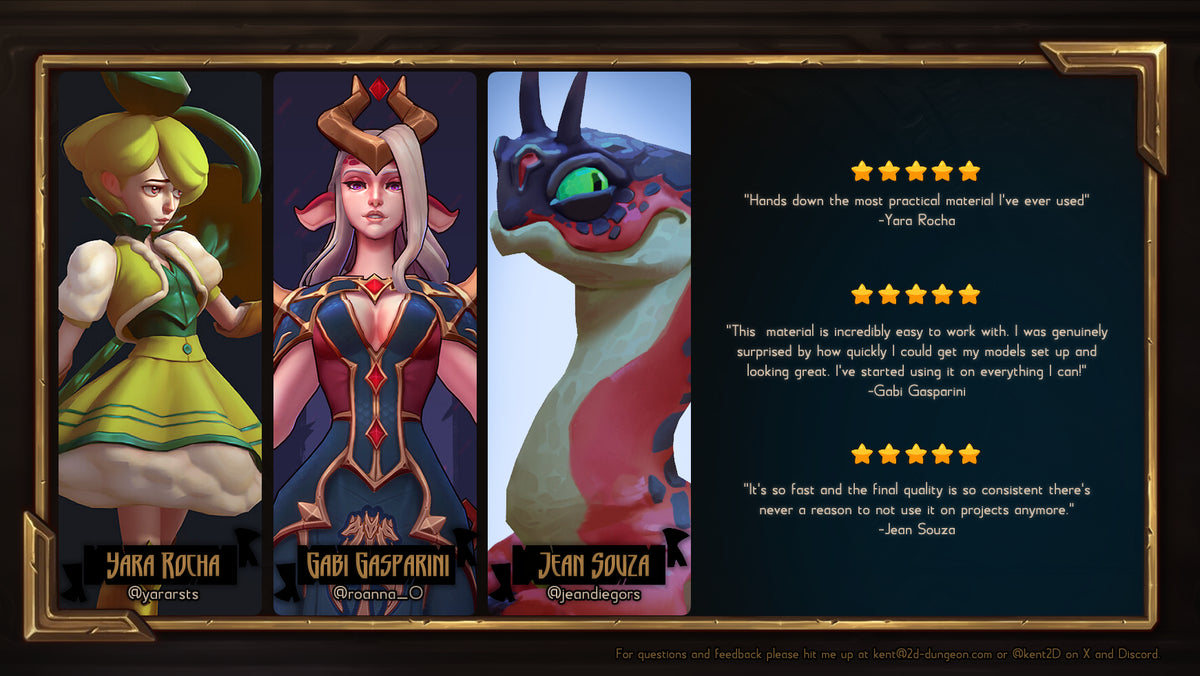
Been using this for some time now and has been one of the best out of the box experiences I've had for painter hands down, cannot suggest it enough!
For Adobe Substance Painter 2024 (10.1.2) and newer.
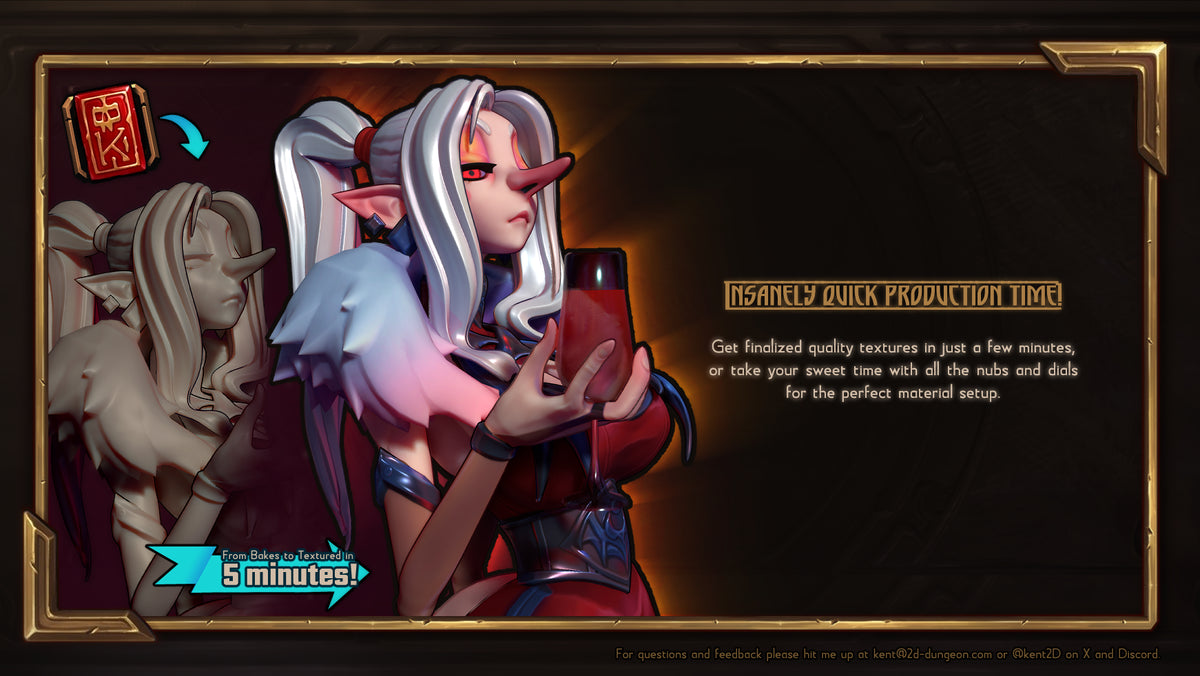
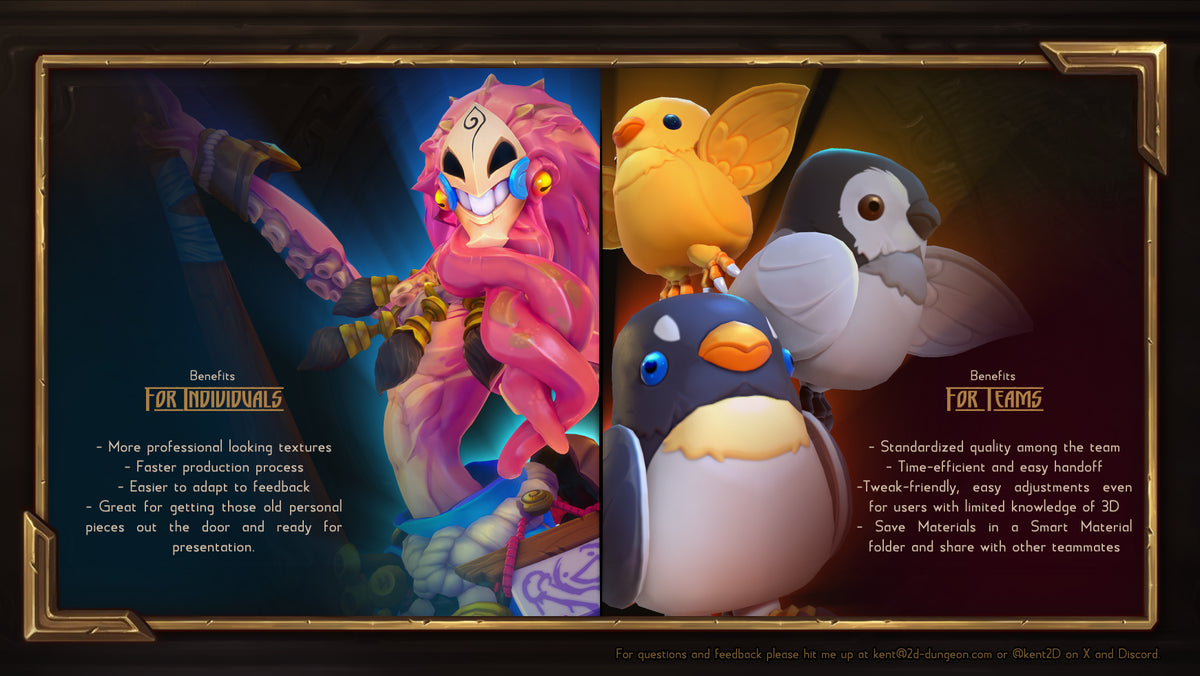
My K3D Stylized Material is the result of over 3 years of study, testing, and feedback that brought it to its current state. It offers a strong, stylized texture base with MANY layers of customization, letting users find the perfect stylized presentation for their pieces, OR use it as a super reliable base for hand-painted models!
Every menu has been carefully designed with user experience in mind. When the sub-menus are collapsed, the UI lets you quickly visualize all active color choices and effects on your model at a glance.
Outstanding Features:
- Select Blending Modes for each material element: Do you prefer Soft Light for your Shadows instead of Multiply? Or do you like the punch of Color Dodge for your lights? Each section between Shadow, Terminator, Light, AO, Curvature, and Subsurface has its own integrated Blending Mode.
- Terminator setting: Working on blue armor under an orange light and dealing with that ugly muddy grey? The Terminator is a great choice to break the linearity of color interpolation with something more flattering without breaking your color palette!
- Ambient Occlusion... TWICE?: 2 Inputs for Ambient Occlusion for LocalAOs (same mesh groups) or ContactAO. Pick and choose what elements cast permanent shadows and which ones need to make way for the engine's dynamic lighting.
- Final Adjustments Setting: If you get to 90% of the way to your perfect Material look but you're just shy of a tiny bit of contrast or saturation? The Final Adjustments group is great for compensating or quickly adjusting your texture based on feedback. Push those values to the limit or make them fade back with only a few sliders.
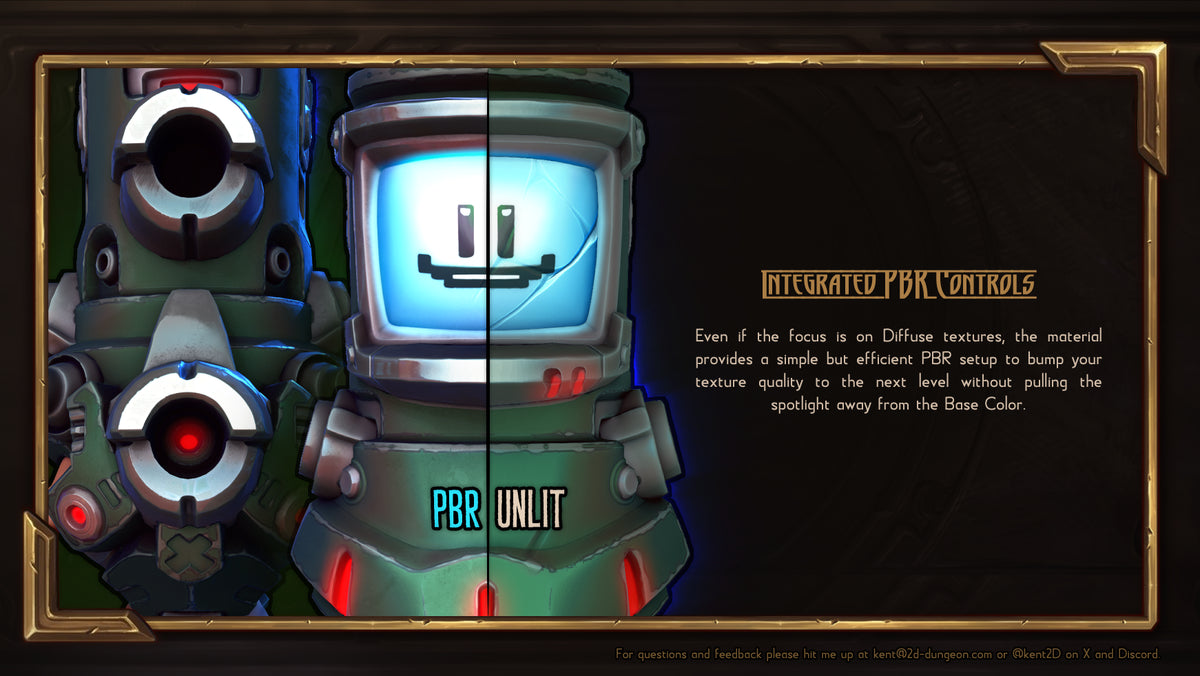
- Brush Stroke Option to break the sterile look of the bakes, PBR Settings for modern pipelines, Presets for a set of varying starting points, and much more.
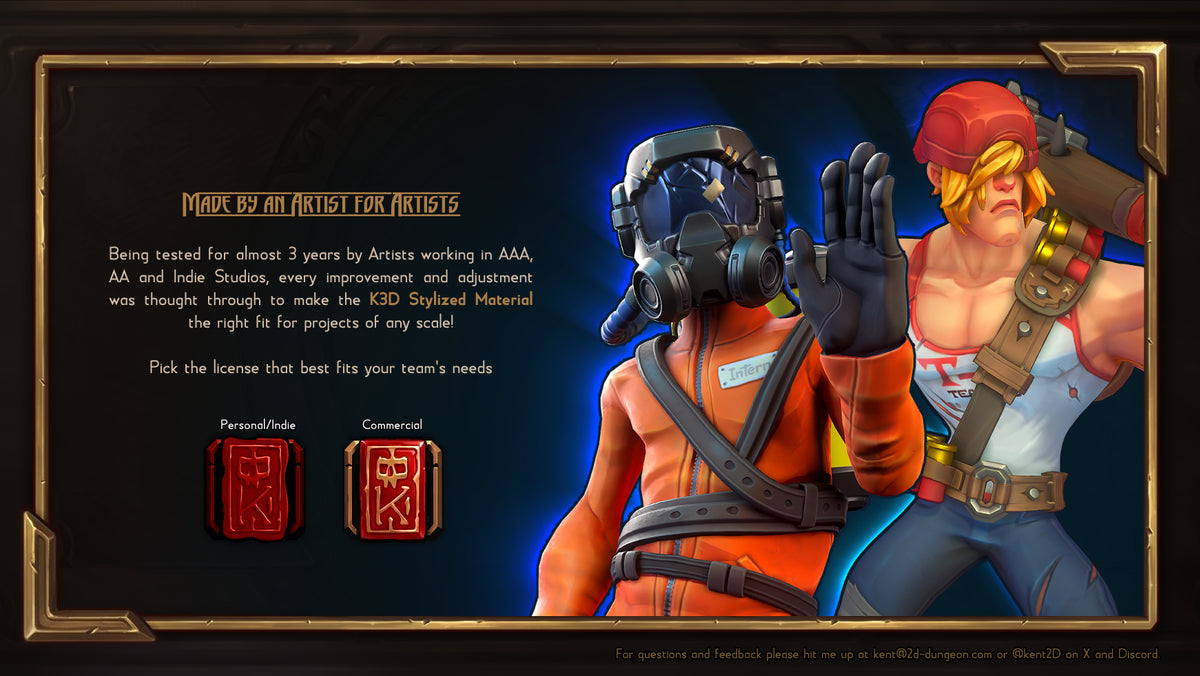
This material has been thoroughly tested and vetted by AAA, AA, and Indie artists, then polished to the best of my abilities, and it's ready to be shared with the community. I hope you guys like it! :>
Licensing Information:
- Personal/Indie License ($25): For individual artists/freelancers earning under $100k USD/year. (Features the Red Wax Seal icon).
- Commercial/Studio License ($85): For studios or individuals earning over $100k USD/year. (Features the Gold Rimmed icon).
*Both versions are functionally identical with no locked features. License prices are per-seat.
The entire material was made by me and I'm an single person working on it, please don't redistribute or share without prior authorization!
Installation:
Drag and Drop the Material in your Substance Shelf and set it to 'library 'your_assets' ' or save the .sbsar file to your "Documents\Adobe\Adobe Substance 3D Painter\assets\materials\" folder.
Full Feature List
Base Texture Mask
Will cover the ENTIRE setup of the material with either the Base Color or the Polypaint, depending on your material configuration.
Brush Stroke
Material Style Adds a Brush Stroke overlay that reacts to light and shadow information for added texture.
Input Selection Choose between Industrial Streaks, Abstract Brush Strokes, or use a Custom Texture (Input).
- Brightness
- Contrast
- Transform Adjust the Scale of the Brush Strokes.
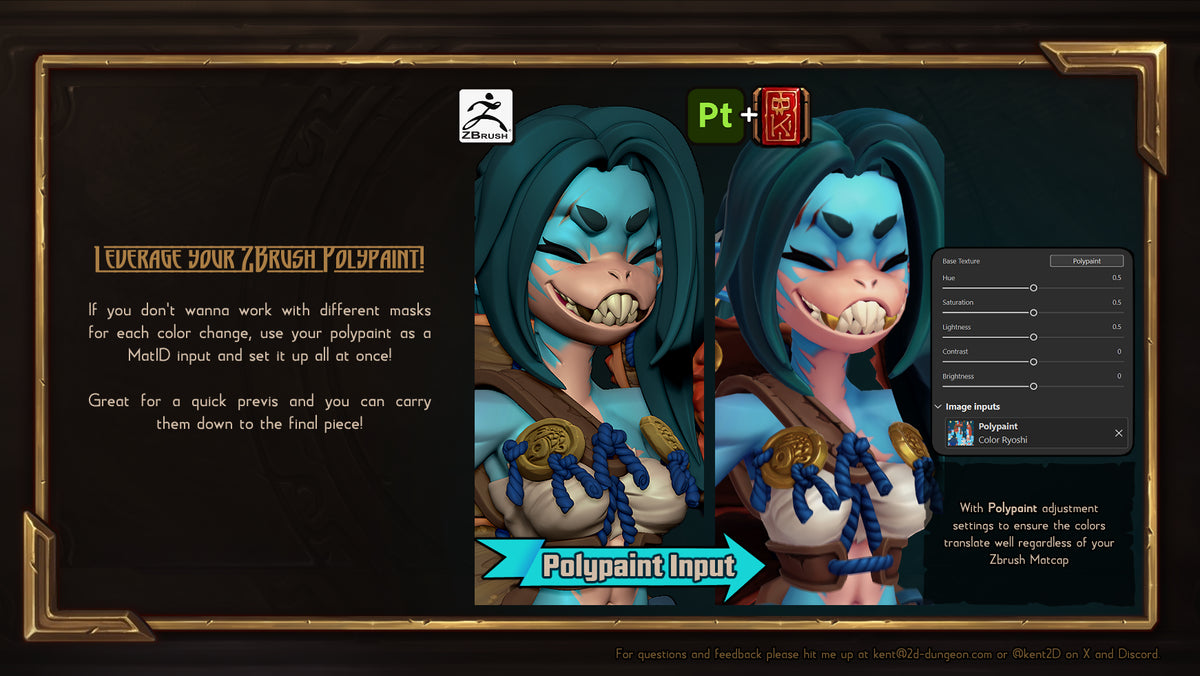
Base Texture Whether the starting point of the material is Base Color or Polypaint (requires map input).
- Base Color
- Polypaint Color Adjustments
- Hue
- Luminosity
- Saturation
- Contrast
- Brightness
Shadow
Double-Sided Lighting Light is cast only from the front or both front-and-back.
- Shadow Angles
- Shadow Glossness
- Shadow Levels
- Shadow Color
- Shadow Blending Mode Choose Between Normal, Multiply, Overlay, Soft Light or Color Burn.
Terminator
- Terminator Position
- Terminator Range
- Terminator Contrast
- Terminator Soften
- Terminator Color
- Terminator Binding Whether the Terminator starts from the light edge and moves towards the shadow or vice versa.
- Terminator Blending Mode Choose Between Normal, Multiply, Overlay, or Soft Light.
Light
Light Follows Shadow Angle Defines whether the light is following the shadow angle input or if it has its own angle (Shadow and AO will still have priority over light).
- Light Angles
- Light Glossness
- Light Levels
- Light Color Bump Adds an extra highlight following the brightest area of the light input.
- Highlight Color
- Highlight Blending Mode Choose between Normal, Soft Light or Overlay.
- Highlight Position
- Highlight Contrast
- Highlight Blur
- Light Color
- Light Blending Mode Choose between Normal, Overlay, Soft Light or Color Dodge.
Ambient Occlusion
Contact AO Color Linked to Local AO Color Choose whether each AO input has its own color or if they share the same color input.
- Contact AO Color
- AO Range
- Contact AO RAnge
- Falloff Threshold
- Falloff Contrast
- AO Blur
- AO Color
- Blending Mode Choose between Normal, Multiply, Overlay or Soft Light
Curvature
Thickness Boosts Curvature Subsurface settings work as a configurable mask for the Curvature, making it more present in thicker/thinner areas of the texture.
- Thickness Influence Opacity of the curvature in thicker areas of the model.
- Curvature Color (Edge)
- Edge Range
- Curvature Color (Cavity)
- Cavity Range
- Curvature Blending Mode Choose between Normal, Overlay or Soft Light
- Curvature Soft Curvature a blurred edge underneath it to soften the slopes.
- Curvature Soft Opacity
- Curvature Tighten Pulls in the extreme ranges to make subtle ranges more contrasted.
Subsurface
- Brush Stroke Influence
- Subsurface Invert
- Subsurface Range
- Subsurface Position
- Subsurface Contrast
- Subsurface Blur
- Subsurface Color
- Subsurface Blending Mode Choose between Normal, Multiply, Overlay or Soft Light
Final Adjustments
- Hue
- Luminosity
- Saturation
- Contrast
- Brightness
- Color Temperature Color balances toward warmer or colder tones.
- Color Cover Overlay a solid color over the entire texture.
- Kuwahara
- Kuwahara Opacity
- Kuwahara Radius
- Kuwahara Smoothness
Metallic/Roughness Material Type Choose between PBR ranges for different material types between Skin, Hair, Leather, Cloth, Metal, Bone, Eyes, Wood and Gems. Or FREE for full 0-1 range on both Metallic and roughness.
Roughness
Metalness
Roughness Mask
- Ambient Occlusion Mask
- Contact AO Mask
- AO Threshold
- AO Contrast
- AO Blur
- Custom Grunge Use the standard material grunge or input your own.
- Grunge Intensity
- Grunge Scale
- Curvature
- Convex Range
- Concave Range
- Smoothness
5.0
3 ratings on Gumroad
The material looks really high quality. I really liked the fine controls and adjustment options. Usually, after creating my base colors, I add extra layers for manual tweaks, but here the process feels much more controlled and flexible.
As someone who enjoys working with materials like this, I found it very practical. Compared to similar materials I’ve used, it felt easier to guide the result and fine-tune the look I wanted.
I also loved the brush stroke shapes and the grunge result. It gives everything a very natural and appealing look. Really enjoyed it overall!!
Hands down, one of the best materials I’ve gotten to use for stylized asset creation! I was lucky enough to test out this material on some projects when it was in its infancy and noticed a lot has been refined and improved upon since then. I appreciate how intuitive it is to get to the final texturing stage in a fraction of the time while having the ability to tweak and make small adjustment's for different iterations.
2 really cool features that makes this a worthwhile purchase:
• The ability to leverage and adjust your polypaint input from Zbrush.
• The integrated PBR controls that let you add a bit more pizzazz to the texture quality while retaining the overall look of the base color.